
Your phone is probably the device you use most on public Wi-Fi, so it is also the one that benefits most from a VPN. Setting one up on an iPhone or an Android phone takes only a few minutes, and once configured it can run quietly in the background. This guide walks you through the process on both platforms, explains the settings worth changing and helps you fix common problems.
If you have not chosen a provider yet, start with our guide to the best VPN services for U.S. users. This page may contain affiliate links; see our affiliate disclosure.
Why Use a VPN on Your Phone?
Phones constantly hop between networks: home Wi-Fi, office Wi-Fi, cafés, airports and cellular data. Many of those networks are shared with strangers. A VPN encrypts the traffic between your phone and the VPN server, making it far harder for anyone on the same network to snoop on what you do. It also hides your IP address from the apps and sites you visit, which reduces tracking.
It is not a magic shield. A VPN does not stop phishing messages or malicious apps, so keep your phone updated and be careful about what you install. Our article on how to spot phishing scams explains the warning signs.
Before You Start
- Pick a reputable provider with a native app for iOS and Android.
- Create your account on the provider’s website and confirm your email.
- Update your phone to the latest operating system version.
- Download the app only from the Apple App Store or Google Play Store.
How to Set Up a VPN on iPhone
- Install the app. Open the App Store, search for your VPN provider and tap Get.
- Sign in. Open the app and log in with your account details.
- Allow the VPN configuration. The first time you connect, iOS asks permission to add VPN configurations. Tap Allow and confirm with Face ID, Touch ID or your passcode.
- Choose a server. Pick Quick Connect for the fastest option, or select a country or city.
- Check the status. A small VPN badge appears in the status bar once you are connected.
- Enable automation. In the app’s settings, turn on options like Auto-Connect on untrusted Wi-Fi and the kill switch if available.
How to Set Up a VPN on Android
- Install the app. Open Google Play, search for your provider and tap Install.
- Sign in. Log in with your credentials.
- Approve the connection request. Android shows a prompt that the app wants to set up a VPN connection. Tap OK.
- Connect. Choose Quick Connect or pick a server.
- Turn on Always-on VPN. Open Settings, search for VPN, tap the gear icon beside your app and enable Always-on VPN and Block connections without VPN.
Settings Worth Changing
Kill switch
A kill switch blocks internet traffic if the VPN drops, so your real IP address and unencrypted data never leak. On Android this is built in via the system setting, and many iOS apps include their own version.
Protocol
Choose WireGuard or the provider’s proprietary equivalent for the best mix of speed and battery life. Use OpenVPN only if you have connection problems.
Split tunneling
Split tunneling lets you choose which apps use the VPN. It is handy for keeping banking or local-network apps outside the tunnel while everything else is protected. It is more common on Android than on iPhone.
Auto-connect rules
Set the VPN to connect on any Wi-Fi network except your trusted home network, and on cellular if you wish. This removes the need to remember to turn it on.
How to Check That Your VPN Works
Connect to a server in another city, then visit a website that shows your IP address. It should show the VPN server’s location rather than yours. Run a DNS leak test as well, and make sure the result shows your VPN provider’s DNS servers rather than your mobile carrier or internet provider.
Security Habits That Pair Well With a Phone VPN
A VPN protects the connection, not the device itself. Keep automatic updates switched on for iOS or Android and for your apps, because many attacks exploit known bugs that already have fixes. Review app permissions every few months and remove apps you no longer use. Use a screen lock with a strong passcode or biometrics, and enable the find-my-phone feature so a lost device can be locked or wiped remotely.
It also helps to be selective about Wi-Fi. Avoid networks that ask for personal details without a clear reason, forget old networks you no longer use, and turn off automatic joining of open hotspots. When you must use a public network, connect the VPN first, then open sensitive apps such as banking or work email.
Troubleshooting
- Connection keeps dropping: change protocols, switch servers or toggle the app’s reconnect option.
- Slow speeds: choose a closer server, restart the phone, and test your base speed without the VPN. If your home network is the issue, read how to speed up slow Wi-Fi.
- Some apps block you: banking and streaming apps sometimes reject VPN addresses. Use split tunneling or pause the VPN briefly.
- Battery drain: modern protocols are efficient, but older ones use more power. Update the app and use WireGuard.
VPN on Phone vs VPN on Router
A router-level VPN protects every device in your home, including smart TVs, but it does not protect your phone when you leave the house. For most people, an app on the phone plus a router VPN if needed gives the best coverage. See our best Wi-Fi routers for models that support VPN clients.
Staying Legal and Safe
Using a VPN on your phone is legal in the United States. Remember that activities that are illegal without a VPN remain illegal with one. Our explainer, Is a VPN legal in the USA?, goes into detail. Combine your VPN with a password manager from our list of the best password managers for stronger mobile security.
Frequently Asked Questions
Does a VPN use more mobile data?
Encryption adds a small overhead, typically a few percent. It is rarely noticeable.
Should I leave my VPN on all the time?
Many people do, especially with an always-on setup. Turn it off only when an app or service refuses to work with it.
Can I use a free VPN on my phone?
You can, but be careful about data collection. Read our free vs paid VPN comparison first.
Final Thoughts
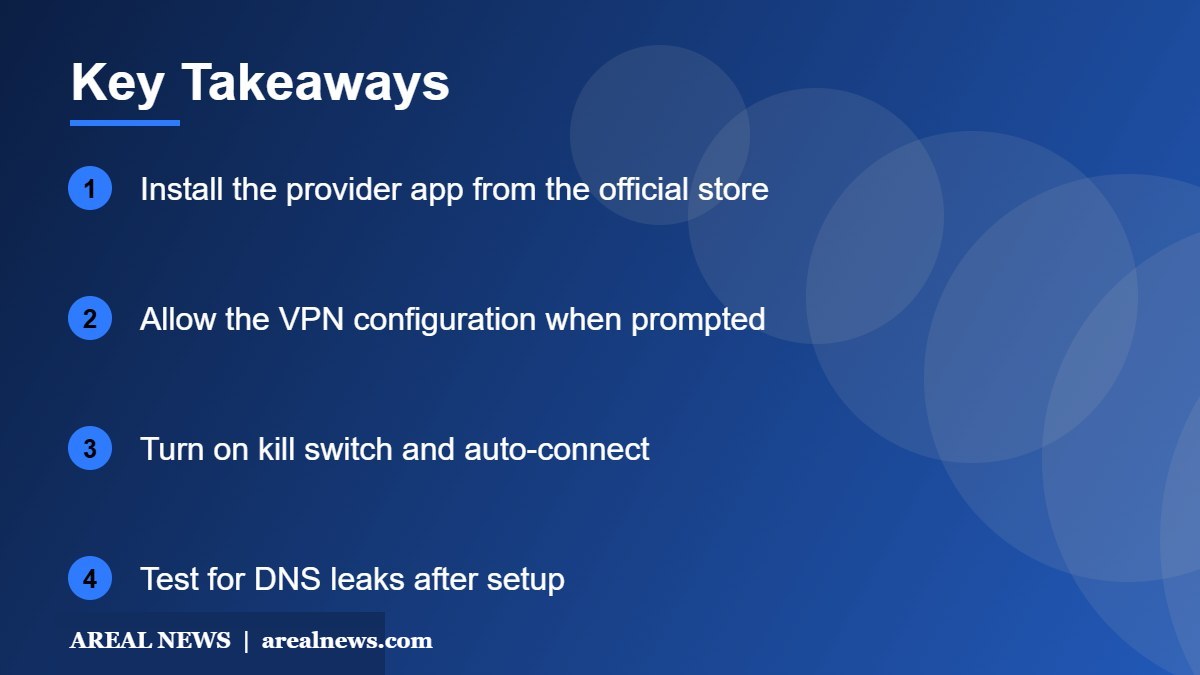
With a reputable app and a few smart settings, a VPN on your phone becomes a set-and-forget layer of protection. Install it, enable the kill switch and auto-connect, and test it once. Then you can use public Wi-Fi with far more confidence.


