
If you work from home on a laptop screen alone, you are probably squinting, hunching and switching between windows more than necessary. A good external monitor is one of the best productivity and comfort upgrades you can make. It gives you more room for documents and spreadsheets, sharper text, better posture and, for many people, a cleaner and more professional video-call setup. This guide explains what to look for in a monitor for home office use and which types are best for different jobs and budgets.
Disclosure: some links may earn us a commission; see our affiliate disclosure. Product lines change quickly, so check current reviews before buying.
Screen Size and Resolution
24 inches at 1080p
A budget-friendly choice for basic tasks, though text may look slightly less sharp.
27 inches at QHD (1440p)
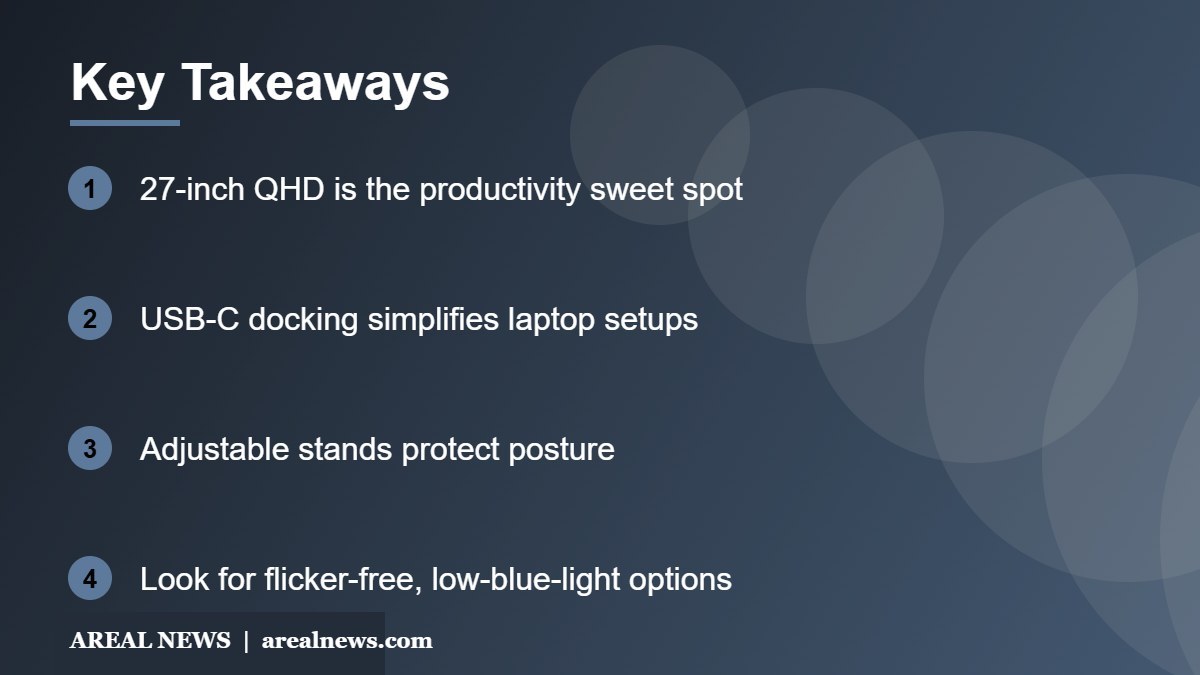
This is the sweet spot for most home offices. It offers plenty of workspace, sharp text and fair prices.
27 to 32 inches at 4K
Great for designers, editors and anyone who wants very crisp text. Requires a laptop or graphics output that can drive it, and may need operating system scaling.
Ultrawide monitors
A 34-inch ultrawide replaces two monitors with one wide screen, which is excellent for spreadsheets and timelines. Check whether your laptop supports the resolution.
Panel Types
- IPS: good color accuracy and wide viewing angles, the best all-rounder for office work.
- VA: higher contrast, good for media, with slower response in some models.
- OLED: superb contrast and color, but pricier, and static office content can raise burn-in concerns.
Connectivity and Docking
A monitor with USB-C and power delivery lets you connect your laptop with one cable that carries video, data and charging. Built-in USB hubs and Ethernet ports turn the monitor into a docking station, reducing desk clutter. Check the wattage of power delivery, since a thin ultrabook needs less than a performance laptop. If you use a laptop from our business laptop guide, USB-C docking is especially convenient.
Ergonomics
Adjustable stand
Height, tilt and swivel adjustments are crucial. The top of the screen should be at or slightly below eye level, about an arm’s length away. If the stand is limited, a VESA-compatible monitor arm is a worthwhile upgrade.
Eye comfort features
Look for flicker-free backlighting and low-blue-light modes. Take frequent breaks and follow the 20-20-20 rule: every twenty minutes, look at something twenty feet away for twenty seconds.
Matte vs glossy
Matte coatings reduce reflections in bright rooms, while glossy screens make colors pop but can show glare.
Recommendations by Use Case
- General office work: 27-inch QHD IPS with USB-C, from brands like Dell, LG or ASUS.
- Spreadsheets and multitasking: 34-inch ultrawide.
- Design and photo work: 4K IPS with accurate color coverage and calibration support.
- Budget: 24-inch 1080p IPS monitors from Acer, HP or similar.
- Video calls: choose a monitor with a decent webcam only if it is good; many built-in cameras are weak, so consider a separate webcam.
Dual Monitors or One Big Screen?
Two monitors give you separate windows for reference and work, but the bezel between them can be distracting. One large ultrawide avoids the gap and uses a single cable, while two matching 24- or 27-inch displays are often cheaper. Choose based on your tasks and your desk space.
Setting Up Your Home Office
- Position the monitor directly in front of you, with no neck twisting.
- Use a chair that supports your lower back and keep your feet flat.
- Place the keyboard and mouse at elbow height.
- Control glare by placing the screen at right angles to windows.
- Get fast, stable internet; see best internet providers and how to speed up slow Wi-Fi.
Security Tips for Remote Workers
Home offices need good security. Use a VPN as explained in best VPN services, protect accounts with a password manager and keep work files in secure cloud storage, such as the services in best cloud storage. Be alert to phishing scams.
Smart Buying and Safety Checklist
Specifications only tell part of the story. Look at real-world reviews of battery life, screen brightness, keyboard comfort, fan noise and build quality, and compare warranty terms and repair options. Prefer 16 GB of memory and a fast SSD for daily work, and check that the ports match the devices you already own. Buy from retailers with solid return policies, and test the machine thoroughly during the return window so you can catch problems early.
Frequently Asked Questions
Is a curved monitor better for work?
Curved displays can feel immersive on ultrawides but offer little benefit on smaller screens.
Do I need a 4K monitor?
Not for most office tasks. QHD at 27 inches is excellent, and 4K is a bonus for creative work.
Can I use a TV as a monitor?
You can, but text clarity, input lag and ergonomics are usually worse than a proper monitor.
Final Verdict
For most home offices, a 27-inch QHD IPS monitor with USB-C and an adjustable stand delivers the best balance. Choose an ultrawide if you multitask heavily and 4K if you do creative work. A comfortable setup will boost both productivity and wellbeing.
How We Research and Update This Guide
Every Areal News guide on computer hardware starts with the questions U.S. readers actually ask. We review official documentation, published specifications, independent test results where they exist and real-world user feedback, then compare products on the same criteria so recommendations are consistent. We explain our reasoning instead of simply ranking products, so you can adjust the advice to your own situation and budget.
Technology changes quickly. Prices, plans, features and availability can change after publication, so always confirm current details on the provider’s own website before you buy or sign up. We revisit our guides regularly and update them when something important changes. If you spot an error or an out-of-date recommendation, please tell us through our contact page and we will review it promptly.
Some of our articles contain affiliate links. If you purchase through one, we may earn a commission at no additional cost to you. Commissions never decide which products we recommend or how we rank them; our affiliate disclosure explains how we keep editorial decisions independent. This article is for general information and is not professional legal, financial or security advice.


