Passwords alone are no longer enough. Billions of stolen credentials circulate online, and attackers use automated tools to try them on every popular website. Two-factor authentication, often shortened to 2FA, adds a second step to your login so a stolen password by itself is useless. It takes a few minutes to turn on and is one of the most effective security upgrades available to ordinary people. This guide explains how 2FA works, compares the methods and shows you where to enable it first.
It pairs naturally with a password manager and with awareness of phishing scams, since criminals increasingly try to trick you into handing over codes.
What Is Two-Factor Authentication?
Authentication factors fall into three categories: something you know, such as a password; something you have, such as a phone or security key; and something you are, such as a fingerprint or face. 2FA requires two different categories. When you sign in, you enter your password and then prove you also have your phone, key or biometric.
The result: even if a criminal steals your password in a data breach or phishing attack, they cannot log in without the second factor.
Types of 2FA From Weakest to Strongest
SMS text message codes
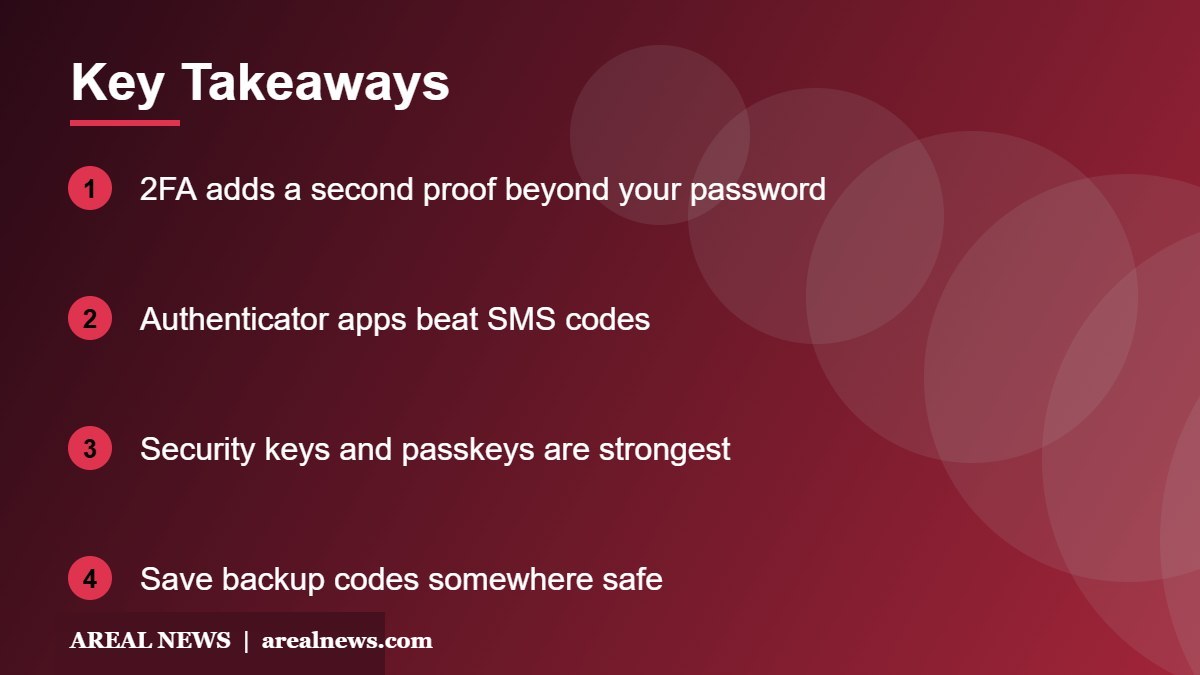
A code is texted to your phone. This is better than nothing and easy to use, but it is vulnerable to SIM-swapping, where criminals convince your carrier to move your number to their device, and to interception through scams. Use it only when nothing better is offered.
Email codes
Codes sent by email are only as safe as your email account. Protect your email with a strong unique password and a stronger second factor.
Authenticator apps
Apps such as Google Authenticator, Microsoft Authenticator, Authy and the built-in authenticators in many password managers generate time-based codes that refresh every thirty seconds. They work offline and are much harder to intercept than SMS.
Push notifications
Some services send a prompt to approve a login. They are convenient, but attackers sometimes spam requests hoping you will tap approve. Never approve a request you did not initiate.
Hardware security keys
Physical keys like YubiKey use the FIDO2 standard and are resistant to phishing, because they only work with the genuine website. They are the gold standard for high-risk accounts.
Passkeys
Passkeys replace passwords with cryptographic keys stored on your device and unlocked with a fingerprint, face or PIN. They are strong against phishing and increasingly supported. Read our explainer on passkeys for details.
Which Accounts to Protect First
- Your primary email. It can reset every other account.
- Banking and financial apps. Including investment, payment and tax accounts.
- Password manager. It guards everything else.
- Cloud storage and Apple or Google accounts. They hold photos, documents and device backups.
- Social media. Hijacked accounts are used to scam your friends.
- Work accounts. Follow your employer’s policy.
How to Turn On 2FA: General Steps
- Open the account’s security or sign-in settings.
- Find two-step verification, multi-factor authentication or login verification.
- Choose an authenticator app or security key if offered.
- Scan the QR code with your authenticator app and enter the code to confirm.
- Download and store backup codes in your password manager or a secure place.
- Test by signing out and back in.
Setting It Up on Popular Services
Google and Gmail
Go to your Google Account, open Security and turn on 2-Step Verification. Add an authenticator app or security key and consider creating a passkey.
Apple ID
Two-factor authentication is typically on by default. Review trusted devices and phone numbers in your Apple Account settings.
Microsoft
In your Microsoft account security settings, enable two-step verification and add Microsoft Authenticator.
Banks and brokerages
Choose app-based or key-based options over SMS when offered, and make sure your phone number and email on file are correct.
Backup and Recovery
Losing your phone should not lock you out forever. Save backup codes, enable multiple factors where possible, and consider two security keys, one kept at home in a safe place. A good password manager can store authenticator codes, but keep recovery information separate in case the vault is unavailable. If you also use a VPN on your phone, our mobile VPN guide offers tips for safe travel setups.
2FA for Families and Older Relatives
Parents and grandparents are frequent targets of account takeover scams. Help them enable 2FA on email and banking first, and choose the simplest strong option available, such as an authenticator app or a security key kept with their keys. Write down backup codes and store them in a safe place at home. Explain the golden rule: no legitimate company will ever call and ask for a code that was just sent to your phone.
2FA for Small Businesses
If you run a business, require 2FA on email, payroll, banking, your website’s admin dashboard and any cloud tools. A single compromised employee account can expose customer data and lead to costly incidents. Make enrollment part of onboarding and keep a record of who has recovery access. Hardware keys for administrators are a worthwhile investment.
Common Mistakes
- Sharing a verification code with a caller or in a chat.
- Using SMS for important accounts when better options exist.
- Not saving backup codes.
- Approving push requests blindly.
- Forgetting to update your phone number after changing carriers.
Does 2FA Make Me Fully Safe?
No security measure is perfect. Attackers can still try real-time phishing, malware or social engineering. But 2FA removes the easiest and most common routes, which is why security organizations recommend it so strongly. Combine it with good device hygiene, such as software from our antivirus guide.
Frequently Asked Questions
Is 2FA annoying?
It adds a few seconds, and many services remember trusted devices so you are asked less often.
What if I lose my phone?
Use backup codes or a secondary factor, then re-enroll on a new device. This is why preparation matters.
Is an authenticator app better than SMS?
Yes. It is less exposed to SIM swapping and interception.
Conclusion
Turn on 2FA for your email, banking and password manager today. Choose an authenticator app or security key when you can, store backup codes and stay alert to code-stealing scams. Those few minutes of setup can prevent months of recovery work.


