
Hard drives fail, laptops get stolen, ransomware encrypts files and coffee spills happen. When they do, a good backup is the difference between a bad afternoon and a catastrophe. Yet surveys regularly find that many people either do not back up at all or rely on a single copy that is just as vulnerable as the original. Online backup services solve this by automatically copying your files to secure servers so you can restore them whenever needed. This guide explains how backups work, compares the best services and shows how to build a plan that actually protects you.
Disclosure: we may earn commissions from some links; see our affiliate disclosure. Plans and prices change, so check each provider before buying.
Backup vs Sync vs Storage
Cloud storage such as Google Drive and Dropbox syncs files across devices, which is convenient but not a true backup, because deleting or corrupting a file on one device can propagate everywhere. Backup services run in the background, keep multiple versions and let you restore deleted or damaged files from earlier points in time. Read more about storage options in our best cloud storage services guide.
The 3-2-1 Backup Rule
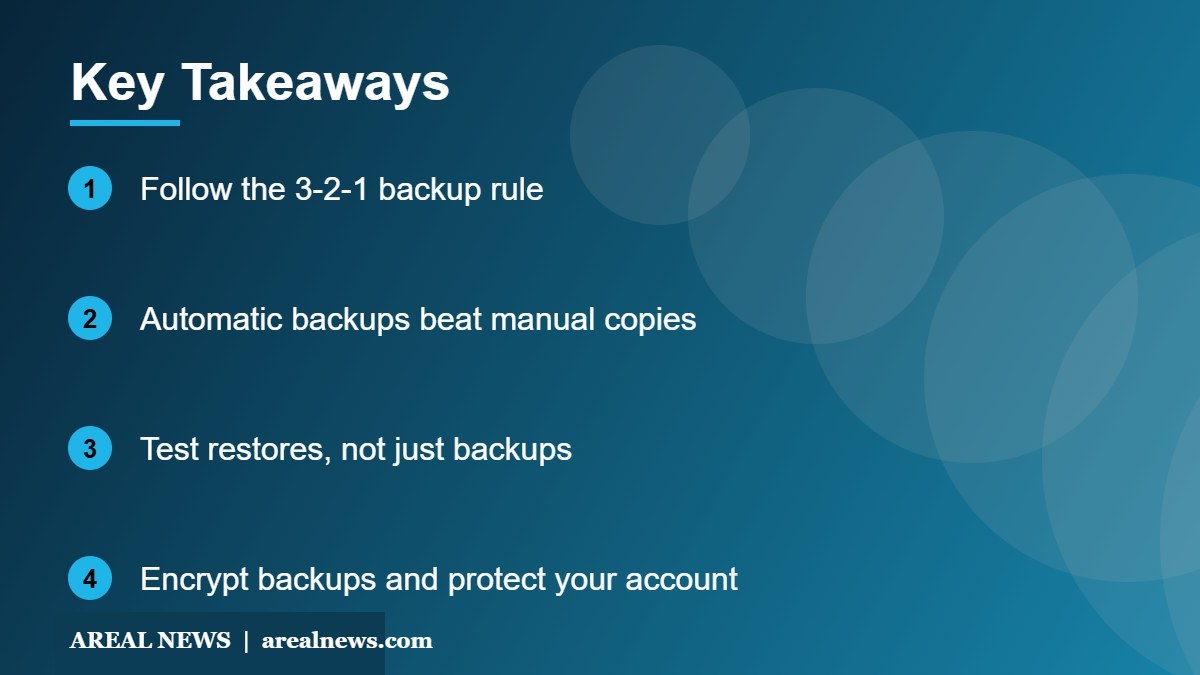
- 3 copies of your data: the original plus two backups.
- 2 different types of media: for example, an external drive and the cloud.
- 1 copy off-site: protects against fire, theft and local disasters.
An online backup service satisfies the off-site requirement, and an external drive at home provides fast local recovery.
What to Look For
Automatic, continuous backup
Backups should run in the background without you remembering to start them.
Versioning and retention
Ransomware can silently encrypt files. Version history lets you restore a clean copy from before the attack.
Encryption and privacy
Look for strong encryption and an optional private key, so only you can decrypt the data.
Restore options
Check how you can restore: downloads, ZIP files or mailed drives for large amounts of data.
Platform support
Make sure it supports Windows, macOS and any servers, external drives or mobile devices you need.
Top Online Backup Services
Backblaze: best for simplicity
Backblaze Personal Backup offers unlimited backup for one computer at a flat price, with simple setup and the option to restore by download or by shipped drive. It is a favorite for home users.
IDrive: best for many devices
IDrive lets you back up multiple computers, phones and tablets under one account, with features like versioning, disk-image backup and optional private encryption keys.
Acronis Cyber Protect: best all-in-one security
Acronis combines backup with anti-malware and ransomware protection, which suits small businesses that want a single tool. It is more expensive and more complex.
Carbonite and others
Carbonite is well known for easy setup and business plans, though pricing and features vary by tier. Compare current offers before choosing.
How to Build a Simple Backup Plan
- List what matters: photos, tax records, work documents and project files.
- Set up an online backup service for automatic off-site copies.
- Add an external drive or NAS for fast local backups.
- Turn on versioning and keep at least thirty days of history.
- Protect your backup account with a unique password and two-factor authentication. See our password manager guide and 2FA guide.
- Test restores twice a year by recovering a few files.
Ransomware and Backups
Ransomware often targets connected drives and network shares. Keep one backup disconnected or immutable when possible, and rely on versioned cloud backups that attackers cannot easily delete. Combine backups with protective software from our antivirus guide and be careful with attachments, as explained in how to spot phishing scams.
Backup for Websites
If you run a website, use your host’s daily backups and keep an independent copy elsewhere. See best WordPress hosting for hosts with strong backup tools.
Smart Buying and Safety Checklist
Business software should earn its place. Write down the three problems you want to solve, trial two or three products with real data, and ask whether your team will realistically use the tool every day. Compare the full cost, including per-user fees, add-ons and onboarding, and confirm that you can export your data in a standard format if you leave. Set role-based permissions, enable two-factor authentication and keep an independent backup of your most important records.
Frequently Asked Questions
How much storage do I need?
Add up your important files and photos and choose a plan with room to grow. Unlimited single-computer plans simplify this.
Is online backup safe?
Yes, when you choose a reputable provider, use encryption and secure your account.
How long does the first backup take?
It depends on data size and upload speed and can take days for large libraries. Later backups are much faster.
Final Verdict
Backblaze is the easiest choice for one computer, IDrive is excellent for households with many devices and Acronis suits businesses that want security built in. Whichever you choose, set it up today, because the best time to back up is before you need it.
How We Research and Update This Guide
Every Areal News guide on business software starts with the questions U.S. readers actually ask. We review official documentation, published specifications, independent test results where they exist and real-world user feedback, then compare products on the same criteria so recommendations are consistent. We explain our reasoning instead of simply ranking products, so you can adjust the advice to your own situation and budget.
Technology changes quickly. Prices, plans, features and availability can change after publication, so always confirm current details on the provider’s own website before you buy or sign up. We revisit our guides regularly and update them when something important changes. If you spot an error or an out-of-date recommendation, please tell us through our contact page and we will review it promptly.
Some of our articles contain affiliate links. If you purchase through one, we may earn a commission at no additional cost to you. Commissions never decide which products we recommend or how we rank them; our affiliate disclosure explains how we keep editorial decisions independent. This article is for general information and is not professional legal, financial or security advice.


